
When we are working with Google Sheets, we might need to add chemical formulas or statistical data for some or other purposes. However, adding subscript or superscripts in Google Sheets is not frequent since we don’t use this feature regularly. Though this is not a commonly used feature, we might fall under circumstances where we might need to add Subscript or Superscript.
As Google Sheets doesn’t have an inbuilt feature of inserting subscript or superscript, we can simply get this done using mathematical formulas. On this page let us understand everything about how to add subscript and superscript with the help of Google Sheets Tips. Read further to find more.
What are Subscript and Superscript?
Subscripts and superscripts are smaller characters than the body of the book. Superscripts are placed above the normal text, whereas subscripts are placed below the normal text.
Example of Subscript and Superscript:
- CH3 is a superscript
- 4² is a superscript
Using Google Sheets CHAR() Function To Add Subscript and Superscript
We can simply add subscript and superscripts in Google Sheets using the Character function. By incorporating ASCII code with the CHAR function, we can simply create subscript or superscript. Let us understand how to do this in the below section.
- How to Strikethrough in Google Sheets: 3 Easy Shortcut Methods
- How to Insert Bullets in Google Sheets: Adding Bullets in MAC, IOS, Android
- How To Highlight Blank or Errors in Google Sheets? (Using Conditional Formatting)
How To Add Subscript in Google Sheets?
Let us say, we need to add generate a subscript text as CH3 in Google Sheets. The steps to get this done are as follows:
- 1st Step: Open the Google Spreadsheet.
- 2nd Step: Now on the homepage, move to the cell where you need to create a subscript text – CH3.
- 3rd Step: Here type CH normally.
- 4th Step: To add 3 as a subscript, we need the ASCII code of 3. The subscript code of 3 is 8323.
- 5th Step: Now type the formula as =char(8323).
- 6th Step: To get the formula CH3 in the cell, type the formula =”H”&”H”&CHAR(8323).
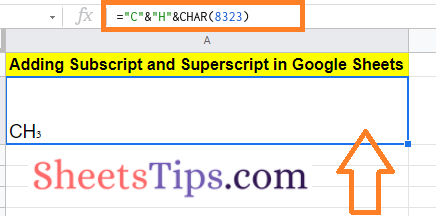
That’s it, The subscript has been generated.
ASCII Codes To Add Subscript In Google Sheets
To add numbers as a subscript, use the codes tabulated below:
| Character | Code | Function |
| 0 | 8320 | ₀ |
| 1 | 8321 | ₁ |
| 2 | 8322 | ₂ |
| 3 | 8323 | ₃ |
| 4 | 8324 | ₄ |
| 5 | 8325 | ₅ |
| 6 | 8326 | ₆ |
| 7 | 8327 | ₇ |
| 8 | 8328 | ₈ |
| 9 | 8329 | ₉ |
| + | 8330 | ₊ |
| – | 8331 | ₋ |
| = | 8332 | ₌ |
| ( | 8333 | ₍ |
| ) | 8334 | ₎ |
To add characters as a subscript, use the codes tabulated below:
| Character | Code | Function |
| a | 8336 | ₐ |
| e | 8337 | ₑ |
| o | 8338 | ₒ |
| x | 8339 | ₓ |
| i | 7522 | ᵢ |
| r | 7523 | ᵣ |
| u | 7524 | ᵤ |
| v | 7525 | ᵥ |
| y | 7527 | ᵧ |
How To Add Superscript in Google Sheets?
The steps to add superscript in Google Spreadsheet are as follows:
- 1st Step: Open the Google Spreadsheet where you want to insert the Superscript.
- 2nd Step: Now on the homepage, move to the cell where you want to insert the Superscript.
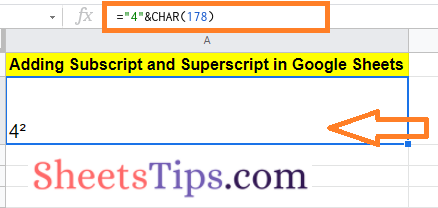
- 3rd Step: In this example, we are trying to add 4². Since we need to add 2 as superscript, we need to use the ASCII code of the 2. The ASCII code of 2 is 178.
- 4th Step: Now type the formula =”4″&CHAR(178).
That’s it. The superscript has been added in the Google Sheets as shown below.
ASCII Codes To Add Superscript in Google Sheets
To add numbers as a superscript, use the codes tabulated below:
| Character | Code | Function |
| 0 | 8304 | ⁰ |
| 1 | 185 | ¹ |
| 2 | 178 | ² |
| 3 | 179 | ³ |
| 4 | 8308 | ⁴ |
| 5 | 8309 | ⁵ |
| 6 | 8310 | ⁶ |
| 7 | 8311 | ⁷ |
| 8 | 8312 | ⁸ |
| 9 | 8313 | ⁹ |
| + | 8314 | ⁺ |
| – | 8315 | ⁻ |
| = | 8316 | ⁼ |
| ( | 8317 | ⁽ |
| ) | 8318 | ⁾ |
To add characters as a superscript, use the codes tabulated below:
| Character | Code | Function |
| a | 7491 | ᵃ |
| b | 7495 | ᵇ |
| c | 7580 | ᶜ |
| d | 7496 | ⁰ |
| e | 7497 | ᵉ |
| f | 7584 | ᶠ |
| g | 7501 | ᵍ |
| h | 688 | ʰ |
| i | 7588 | ᶤ |
| j | 690 | ʲ |
| k | 7503 | ᵏ |
| l | 737 | ˡ |
| m | 7504 | ᵐ |
| n | 8319 | ⁿ |
| o | 7506 | ᵒ |
| p | 7510 | ᵖ |
| r | 691 | ʳ |
| s | 738 | ˢ |
| t | 7511 | ᵗ |
| u | 7512 | ᵘ |
| v | 7515 | ᵛ |
| w | 695 | ʷ |
| x | 739 | ˣ |
| y | 696 | ʸ |
| z | 7611 | ᶻ |
Using Unicode Symbols To Add Subscript and Superscript in Google Sheets
Apart from ASCII codes, we can also add Subscript and Superscripts using the Unicode symbols. The steps to add Subscript or Superscript using the Unicode symbols are as follows:
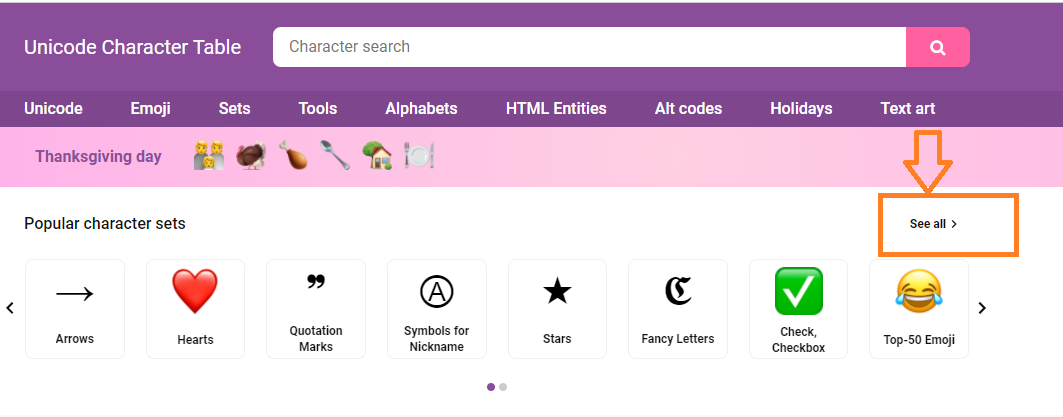
- 1st Step: Visit third-party websites such as www.unicode-table.com.
- 2nd Step: Now on the homepage, click on the “See All” tab.
- 3rd Step: Scroll down and move to the section “Superscript and Subscript Numbers“.
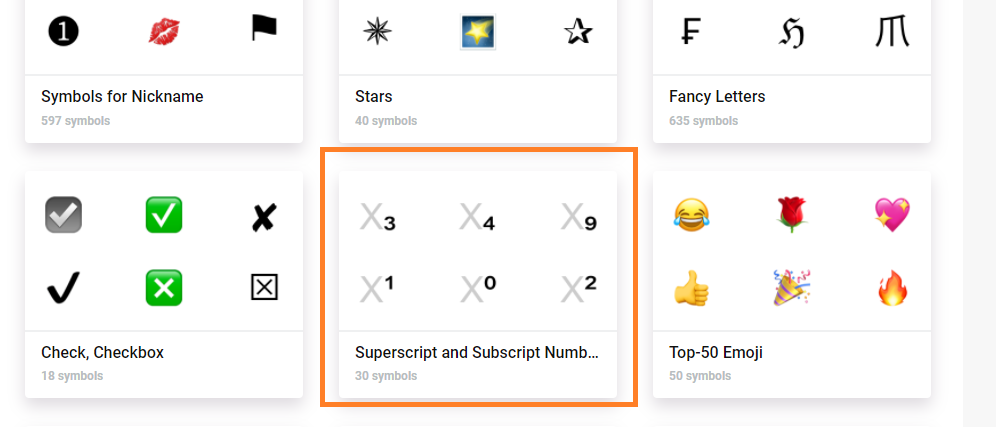
- 4th Step: Click on the subscript or superscript which you would like to copy and click on the “Copy” button.
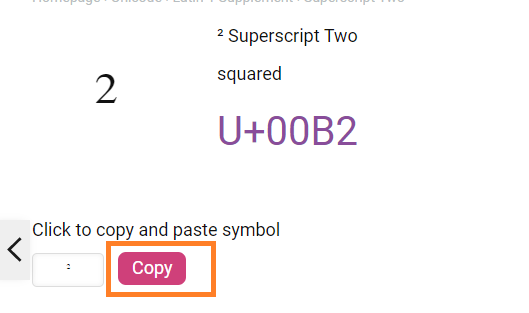
- 5th Step: Now the Subscript or Superscript has been copied to the clipboard. Move to the Google Spreadsheet where you want to paste the Subscript or Superscript,
- 6th Step: Press “Cntrl+Shift+V“. That’s it the subscript or superscript has been pasted in the Google Sheets.
Using Subscript or Superscript Generator in Google Sheets
The steps to add Subscript or Superscript in Google Spreadsheet using the Subscript and Superscript generator are as follows:
- 1st Step: Open the search engine and type Subscript or Superscript generator. I mostly use the website “Subscript/Superscript Generator” – https://lingojam.com/SuperscriptGenerator.
- 2nd Step: Now type the character or number which needs to be converted as Subscript or Superscript.
- 3rd Step: The Subscript or Superscript is generated to the right side of the window.
- 4th Step: Copy the character and move to the Google Spreadsheet where you want to paste.
- 5th Step: Paste the character or number using “Cntrl+Shift+V“.
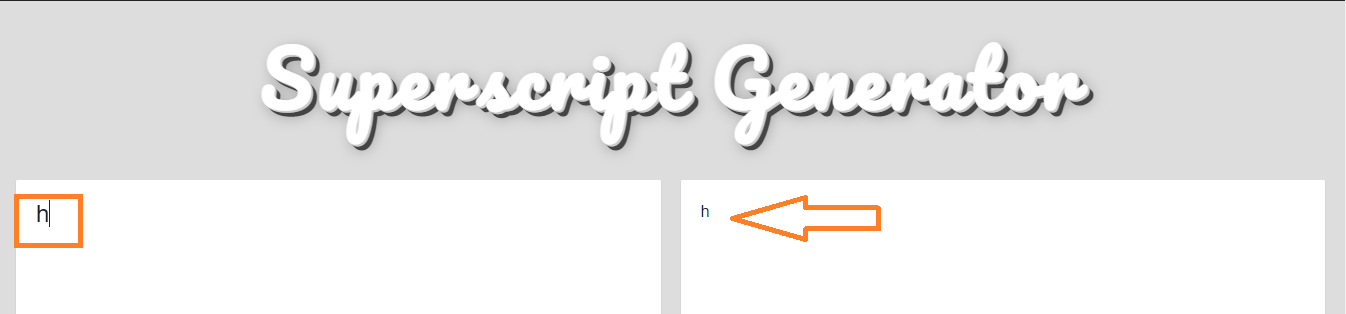
That’s it. The Subscript or Superscript has been inserted into the Google Sheets.